Lead Management and CRM
How to Delete Accounts in Salesforce: A Step-by-Step Guide
The Regie Team
|
Jun 8, 2026

Introduction
Deleting accounts in Salesforce risks losing critical data, creating operational challenges for sales teams. This guide provides a clear process to delete accounts while protecting essential data. Deleting accounts often conflicts with the need to retain critical data. Effective account management in Salesforce streamlines operations and ensures data integrity.
Prepare for Account Deletion in Salesforce
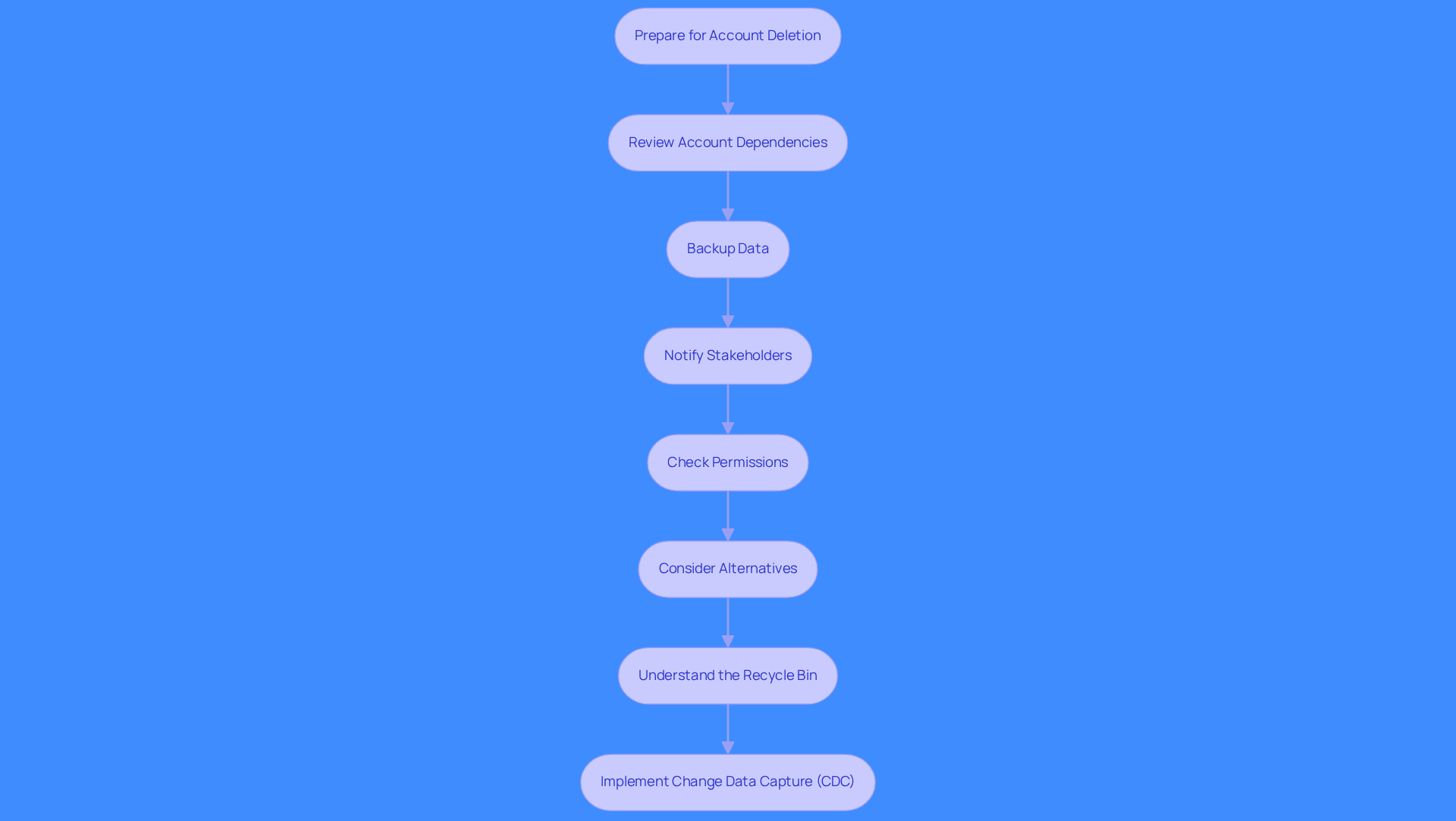
If you don't know how to delete accounts in Salesforce properly, you risk data loss. Follow these steps to ensure a smooth process:
- Review Account Dependencies: Assess related records, such as opportunities, cases, or contacts, that may be impacted by the deletion. Use CRM reports to identify these dependencies.
- Backup Data: Export relevant information linked to the profile using Salesforce's data export tools. This preserves important information for future reference.
- Notify Stakeholders: Inform relevant team members about the impending deletion, especially if it’s linked to ongoing projects or sales activities.
- Check Permissions: Confirm you have the necessary permissions to remove the profile. The 'Delete' permission on the user object is required. Limit who can delete records by managing permissions through Profiles and Permission Sets to prevent accidental deletions.
- Consider Alternatives: If the account is inactive, consider deactivating it instead of deleting it. This preserves the information while preventing further interactions, protecting against potential content loss.
- Understand the Recycle Bin: Removed items in Salesforce stay in the Recycle Bin for 15 days by default, allowing recovery if the deletion was unintentional.
- Implement Change Data Capture (CDC): Use CDC to capture all changes, including deletions, in real-time. This provides a log of changes as they happen.
These steps illustrate how to delete accounts in Salesforce while protecting your data and streamlining account management.
Access User Management in Salesforce
Accessing user management in Salesforce can be streamlined for efficiency:
- Log into Salesforce: Log into your Salesforce account.
- Navigate to Setup: Click the gear icon in the upper right to access Setup.
- Find Users: Type 'Users' in the Quick Find box and select it.
- Locate the Profile: Search for the profile you want to delete. Filter by user name or other criteria to narrow your search.
- Select the Profile: Click the profile name to view its details and management options.
Accessing user management takes about 1-2 minutes, depending on your familiarity with the interface. For efficient navigation, know the Quick Find feature and use filters to streamline your search. Mastering user management drives operational efficiency across your organization.

Deactivate the Account in Salesforce
Understanding how to delete accounts in Salesforce is critical for maintaining operational efficiency.
- Open the Detail Page: From the user management section, click on the profile you wish to deactivate.
- Edit the Profile: Click the 'Edit' button located at the top of the profile detail page.
- Uncheck Active Status: Locate the checkbox labeled 'Active' and uncheck it. This action ensures the profile is inactive and helps illustrate how to delete accounts in Salesforce, thereby reducing clutter in your system.
- Save Changes: Click the 'Save' button to finalize the deactivation.
- Confirm Deactivation: After saving, verify that the status reflects as inactive. This confirmation is essential for ensuring the profile is properly deactivated.
Properly managing how to delete accounts in Salesforce streamlines your sales process, ensuring your team focuses on what matters most: active opportunities.

Manage Post-Deactivation Tasks
Deactivating an account can disrupt sales operations if not handled correctly.
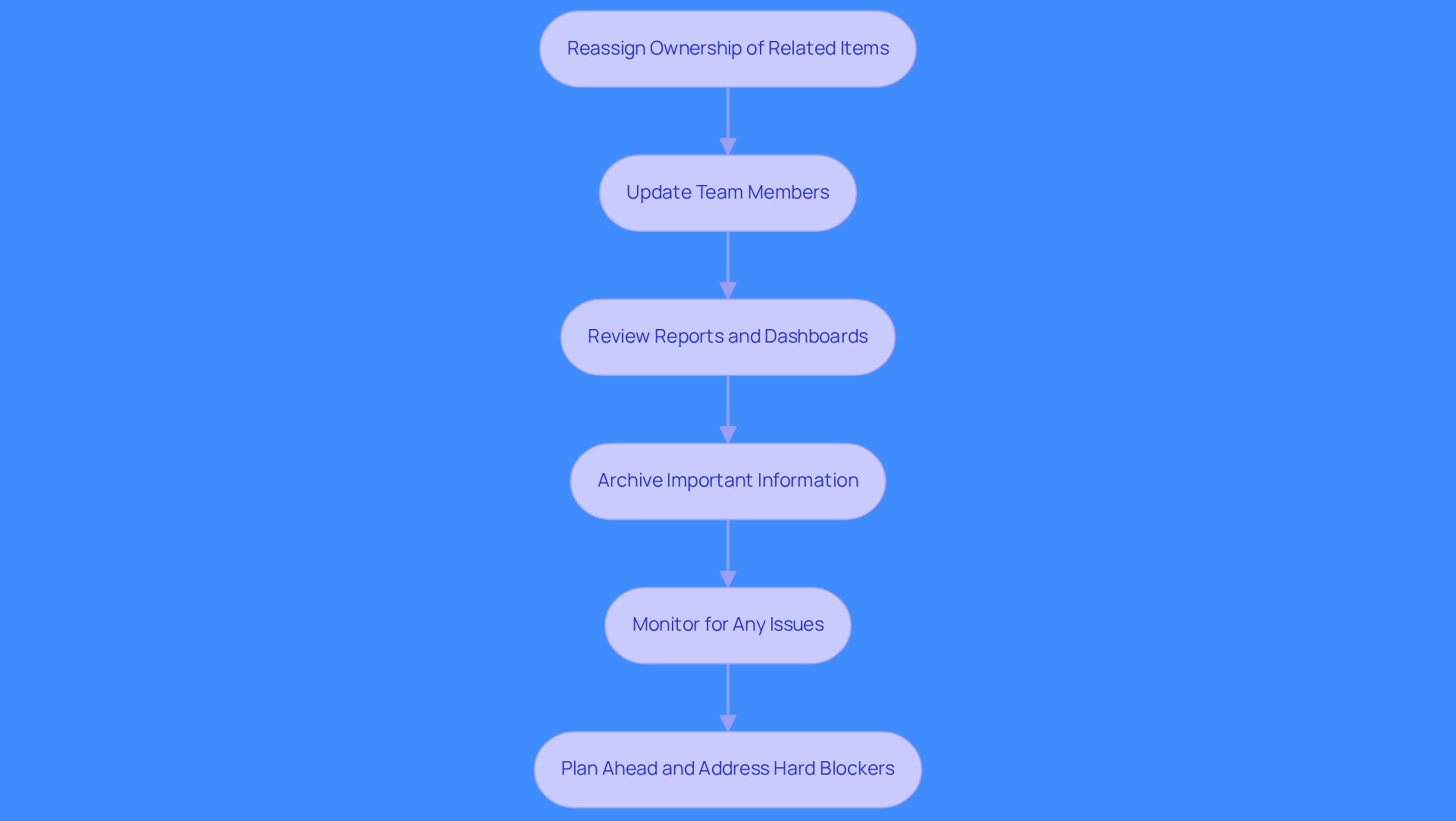
- Reassign Ownership of Related Items: Reassign any associated items, such as opportunities and cases linked to the deactivated account, to another active user. Reassigning ownership prevents disruptions in sales processes and protects against data loss. Use the mass transfer feature to ensure no records are left unassigned.
- Update Team Members: Notify relevant team members about the deactivation and any changes in ownership. Follow these post-deactivation tasks to ensure operational integrity.
- Review Reports and Dashboards: Examine reports or dashboards that may include information from the deactivated profile. Revise these reports to accurately reflect changes, preventing confusion in performance metrics.
- Archive Important Information: Export data or save it securely to retain valuable insights related to the account.
- Monitor for Any Issues: After deactivation, monitor processes that may be affected. Address any issues promptly to ensure smooth operations and minimize disruptions in workflow.
- Plan Ahead and Address Hard Blockers: Before deactivation, clear necessary configurations, such as workflow email alerts and default workflow users. This proactive approach helps prevent errors during the deactivation process and maintains system integrity.
Neglecting these steps can lead to operational setbacks that affect revenue outcomes.
Conclusion
Proper account deletion in Salesforce is crucial for maintaining CRM integrity and operational efficiency. Key steps include:
- Reviewing account dependencies
- Backing up data to prevent data loss and workflow interruptions
- Checking permissions
- Considering deactivation instead of deletion when appropriate
Implementing these strategies ensures that your Salesforce environment remains organized, ultimately enhancing sales performance.
Frequently Asked Questions
What should I do before deleting an account in Salesforce?
Before deleting an account, you should review account dependencies, back up data, notify stakeholders, check permissions, consider alternatives, understand the Recycle Bin, and implement Change Data Capture (CDC.)
How can I assess account dependencies in Salesforce?
You can assess account dependencies by identifying related records such as opportunities, cases, or contacts that may be impacted by the deletion. Using CRM reports can help in this process.
What is the importance of backing up data before deletion?
Backing up data is crucial as it allows you to export relevant information linked to the profile, preserving important information for future reference and preventing data loss.
Why should I notify stakeholders about the account deletion?
Informing relevant team members about the impending deletion is important, especially if it’s linked to ongoing projects or sales activities, to ensure everyone is aware and can adjust accordingly.
How can I check if I have the necessary permissions to delete an account?
You can confirm your permissions by ensuring you have the 'Delete' permission on the user object. It's also advisable to manage permissions through Profiles and Permission Sets to limit who can delete records.
What should I consider if the account is inactive?
If the account is inactive, consider deactivating it instead of deleting it. This approach preserves the information while preventing further interactions, thus protecting against potential content loss.
What happens to deleted items in Salesforce?
Deleted items remain in the Recycle Bin for 15 days by default, allowing you to recover them if the deletion was unintentional.
What is Change Data Capture (CDC) and how does it help?
Change Data Capture (CDC) captures all changes, including deletions, in real-time, providing a log of changes as they happen. This helps in tracking modifications and ensuring data integrity.
List of Sources
- Prepare for Account Deletion in Salesforce
- flosum.com (https://flosum.com/blog/salesforce-data-retention-policies)
- geeksforgeeks.org (https://geeksforgeeks.org/software-engineering/how-long-is-deleted-data-stored-in-salesforce)
- Access User Management in Salesforce
- admin.salesforce.com (https://admin.salesforce.com/blog/2025/whats-new-in-setup-and-user-access-true-to-the-core-deep-dive)
- Salesforce statistics you should know in 2024 — and beyond (https://ventionteams.com/salesforce/statistics)
- salesforceben.com (https://salesforceben.com/salesforce-user-management-best-practices)
- Jen’s Top Spring '26 Features for Admins - Salesforce Admins (https://admin.salesforce.com/blog/2026/jens-top-spring-26-features-for-admins)
- 7 Best Practices for Salesforce User Management (https://flosum.com/blog/salesforce-user-management)
- Deactivate the Account in Salesforce
- penrod.co (https://penrod.co/resources/salesforce-case-studies)
- linkedin.com (https://linkedin.com/posts/neil-sarkar_salesforce-user-deactivation-checklist-activity-7406724805103828992-0PnR)
- admin.salesforce.com (https://admin.salesforce.com/blog/2023/how-to-automatically-deactivate-users-who-havent-logged-on-in-90-days)
- Manage Post-Deactivation Tasks
- linkedin.com (https://linkedin.com/posts/neil-sarkar_salesforce-user-deactivation-checklist-activity-7406724805103828992-0PnR)
- aprika.com (https://aprika.com/fundamental_library/best-practices-for-deactivating-a-salesforce-user)
- linkedin.com (https://linkedin.com/posts/salesforce-ben_11-pitfalls-to-avoid-while-deactivating-an-activity-7369670632860463104-LxSc)